
ServiceM8 Add-on Builder
The ServiceM8 Add-on Builder lets your AI build ServiceM8 add-ons for you. You describe what you want ServiceM8 to do, your AI writes the add-on, you try it on a sample job inside the chat, and when you say so it goes live in your ServiceM8 account.
ServiceM8 hosts and runs the add-on. There is nothing to install, no server to keep running and no developer account to set up. It works on any ServiceM8 account and is free on every FloConnector plan.
It works and is safe to use. It is a new connector, so expect it to improve quickly as real add-ons get built with it.
What you can build
An add-on can show up in four places in ServiceM8, and can use more than one:
| Where | What your team sees | Good for |
|---|---|---|
| A button on the job | On the web, an entry under More, Addons on the job, which opens a popup over it. In the app, an entry in the job's actions, which opens full screen. | Anything about one job: a summary, a checklist, a quick quote, a copy of the job |
| A button on the client | The same, on the client | Anything about one customer |
| An Add-ons page | A tile under Account, Addons on the web (or in the app's More tab) that opens a full page | Reports, dashboards, settings, anything not tied to one job |
| Automatic | Nothing to click. It runs by itself when something changes, such as a job's status or a new photo | Automations: diary notes, notifications, tidying up |
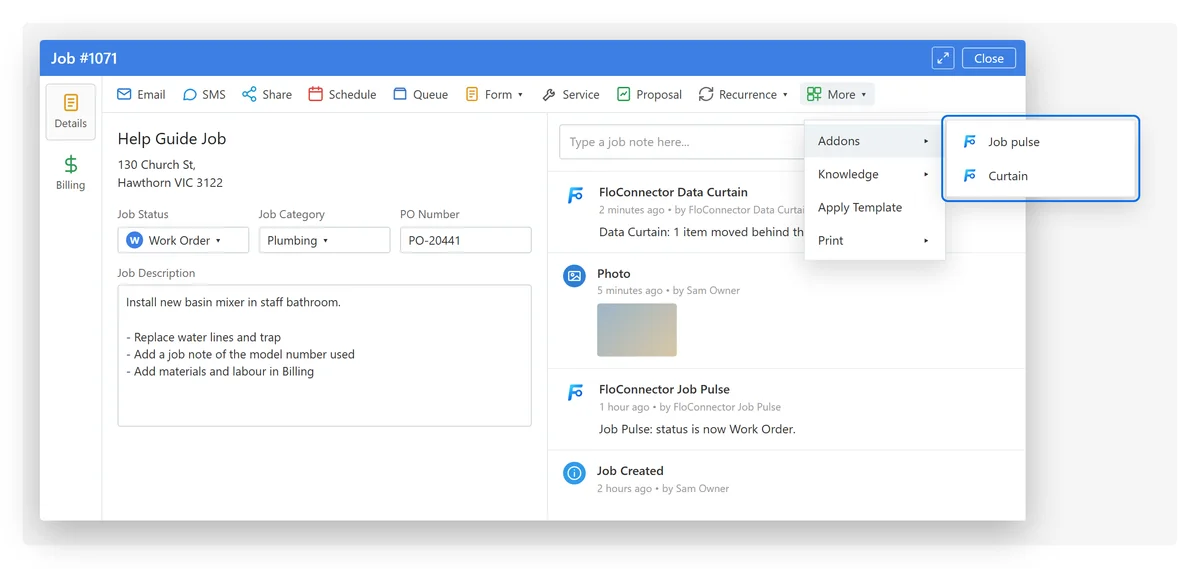
On a job, add-ons sit under More, Addons. The job diary on the right shows lines the add-ons have written. (Illustration.)
A few examples of what people ask for:
- "A Job pulse button that shows the job's status, client, address and description in one place."
- "When a job moves to Work Order, add a diary line saying who moved it and when."
- "Hide any photo whose name starts with PRIVATE from the job diary, and let only business owners see them behind a button."
- "An Add-ons menu page that lists this week's completed jobs with their invoice totals."
How it works
flowchart TD

    A["<b>You describe the add-on</b><br/>in Claude or ChatGPT"] --> B["Your AI reads the built-in<br/>ServiceM8 add-on guide"]

    B --> C["It writes the add-on<br/>and saves a <b>draft</b>"]

    C --> D["FloConnector checks it<br/>(nothing reaches ServiceM8)"]

    D --> E["<b>You try it</b> in a preview<br/>on a sample job"]

    E -->|"Comments"| C

    E --> F["You say go:<br/>it is <b>deployed</b>"]

    F --> G[("ServiceM8 hosts<br/>and runs it")]


    class E good

    class G accent
FloConnector stores your add-on's code, checks it and sends it to ServiceM8. It never runs the code itself, and nothing reaches your ServiceM8 account until you approve the deploy.
Safe by default
- You see everything before it goes live. Every draft comes with a plain-words review: where the add-on will appear and exactly what it will be able to do in ServiceM8.
- Access comes from a reviewed list. An add-on can only ask for permissions on FloConnector's list, and should only ask for what it uses. See Permissions.
- Your AI only touches its own add-ons. It can see the other add-ons in your account, but it can only read in full or change the ones it built. It never deletes an add-on.
- Keys for other services never pass through the chat. If an add-on needs one, you enter it on a one-time FloConnector page. See Secrets.
- Switching off is one request. If an add-on misbehaves, your AI can switch it off in about 30 seconds.
A deployed add-on is live for everyone in the account straight away. If you have a test ServiceM8 account, connect the Add-on Builder to it first and move an add-on across once it does what you want.
In this section
Approve it in ServiceM8 and add it to a profile.
What to ask for, the review, permissions and icons.
Click through the add-on on a sample job and point at what to change.
Going live, watching it run, secrets, switching off.
Tools, limits, what add-ons can't do, and fixes for common problems.