
Deploy, watch and switch off
Deploy
When the add-on does what you want in the preview, tell your AI to deploy it. It only does so after you've seen the review and said yes, and it confirms which account it is deploying to.
ServiceM8 takes 20 to 40 seconds to accept a deploy. Your AI waits and tells you when the add-on is live, or what ServiceM8 refused and why.
A deployed add-on appears for everyone in the account straight away, and automatic add-ons start running on the next change. Deploy to a test account first if you have one.
Find it in ServiceM8
A new add-on's buttons and menu entries can take a few minutes to show up. If you can't see it straight after a deploy, wait a couple of minutes and reload ServiceM8.
- Job buttons are on the job, under More, Addons on the web, and in the job's actions in the app.
- Client buttons are on the client, in the same way.
- Add-ons pages are under Account, Addons on the web, or the More tab in the app.
- Automatic add-ons have nothing to find. They run about 17 seconds after the change they watch for. Many write a line in the job diary so you can see they ran.
On a job
Open a job, click More, then Addons. Every add-on button for jobs is listed there with its icon.
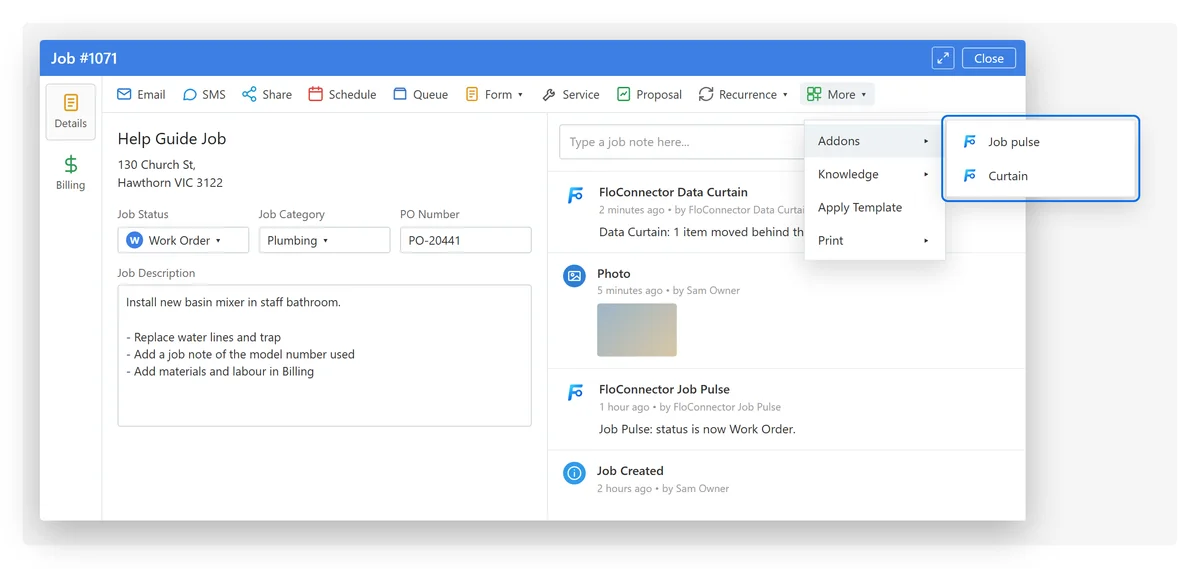
More, Addons on a job lists the add-ons' job buttons.
Clicking one opens the add-on in a popup over the job:
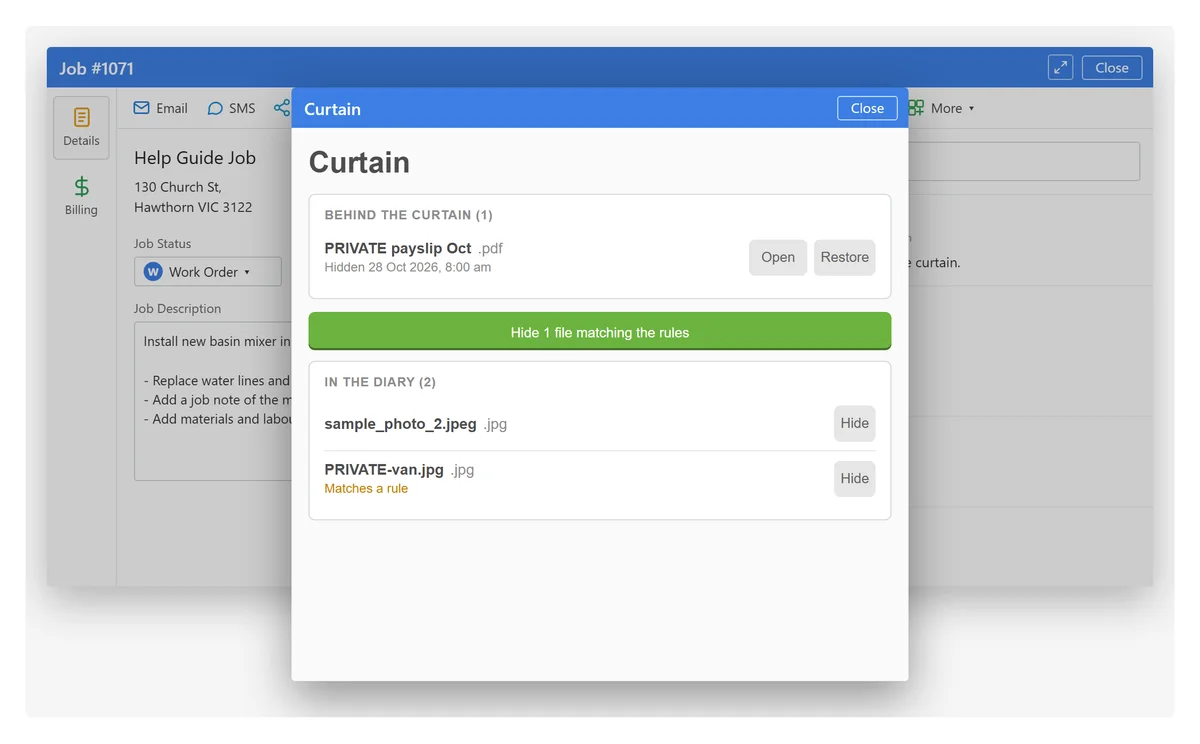
The Curtain add-on's popup, over job 1071.
Add-ons pages
Pages that aren't about one job live under Account, Addons:
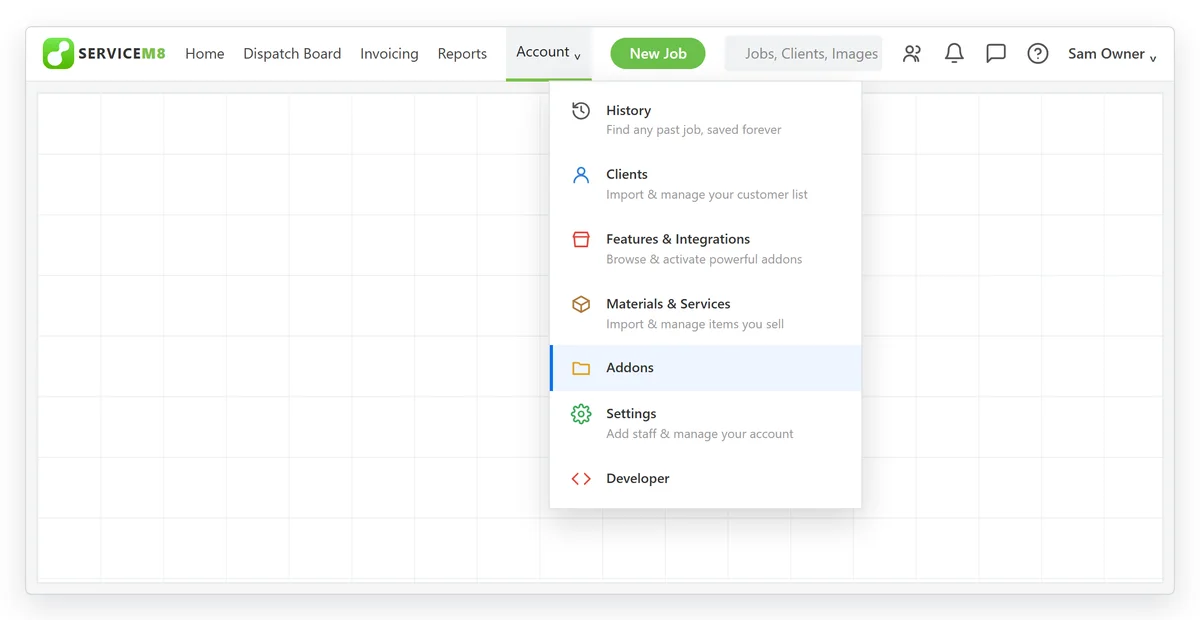
Account, Addons.
Each add-on page is a tile there:
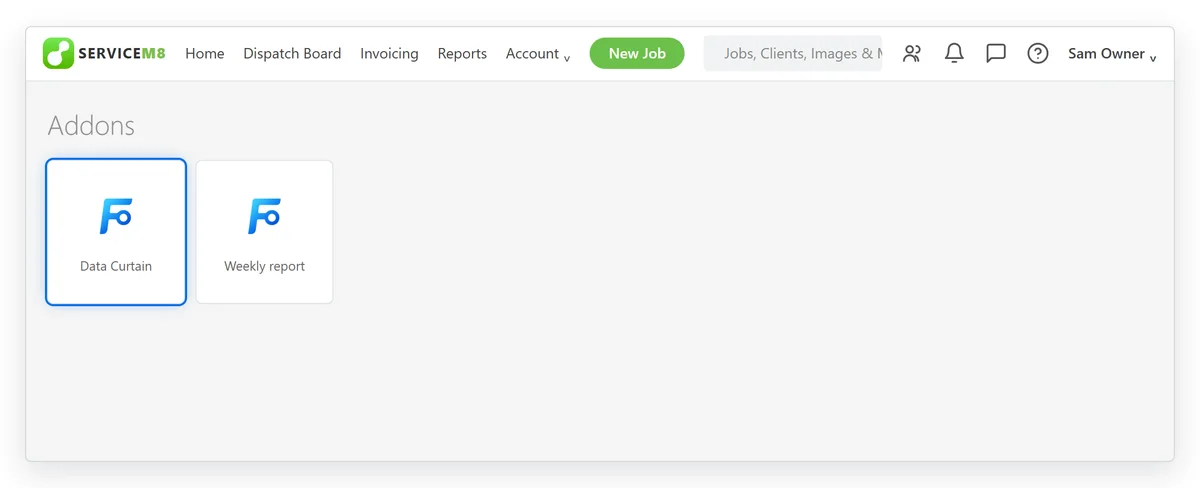
Your add-ons' pages, one tile each.
Click a tile and the page opens at full width, under the add-on's name:
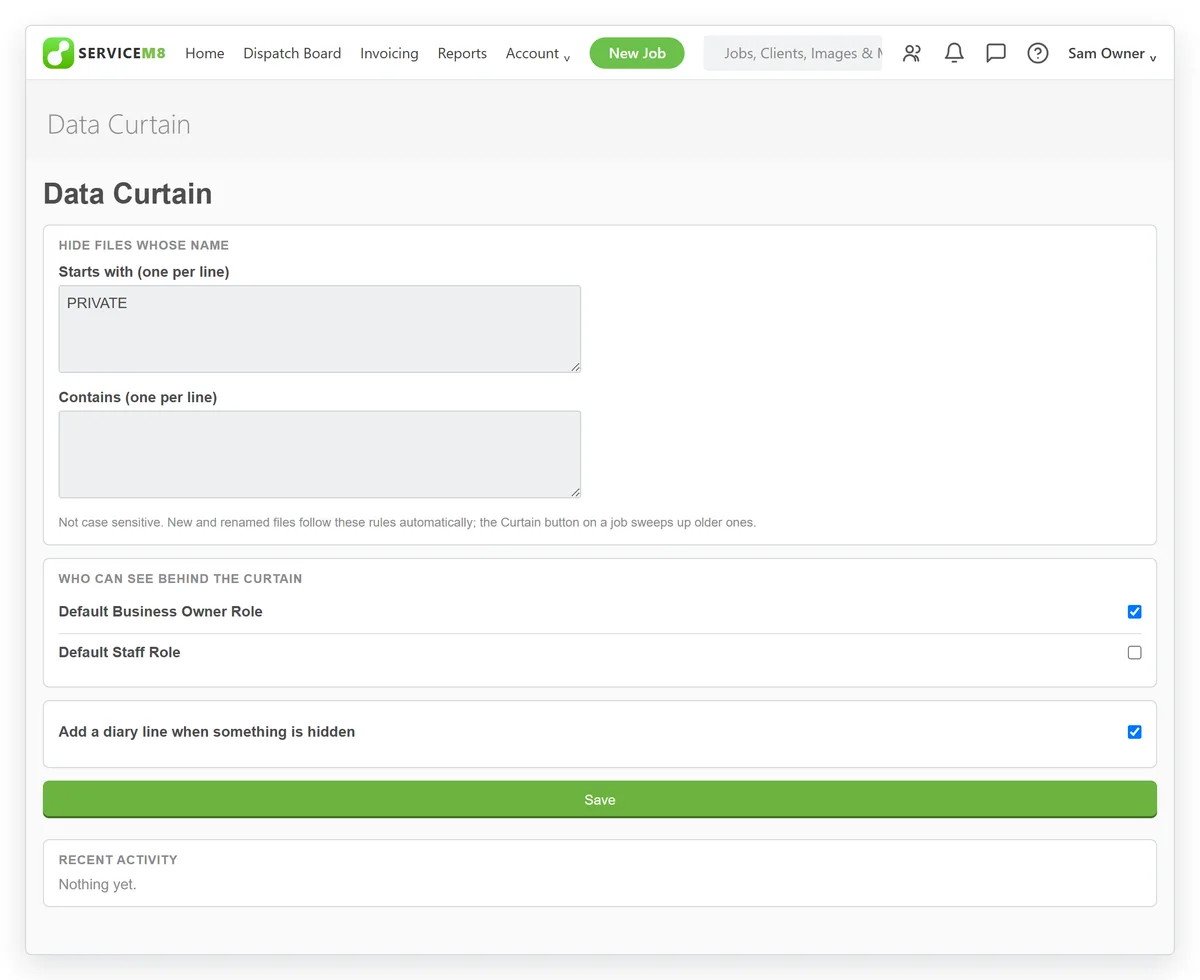
Data Curtain's settings page, opened from its tile.
In the app
On a phone, a job's add-on buttons appear in the job's actions alongside ServiceM8's own, and open full screen.
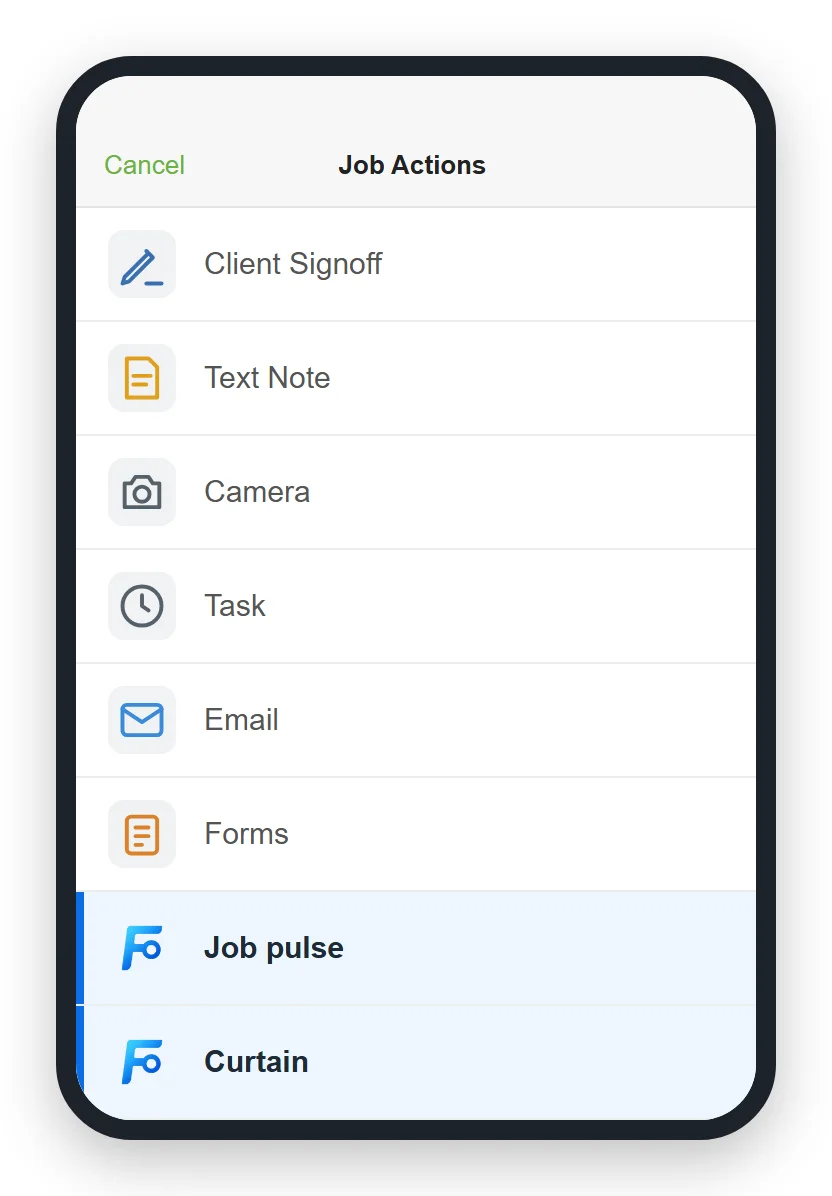
The job's actions in the app, with two add-ons at the bottom.
In the job diary
Add-ons can write a line in the job diary, under the add-on's name and icon. Automatic add-ons often do, so you can see when they ran and what they did.
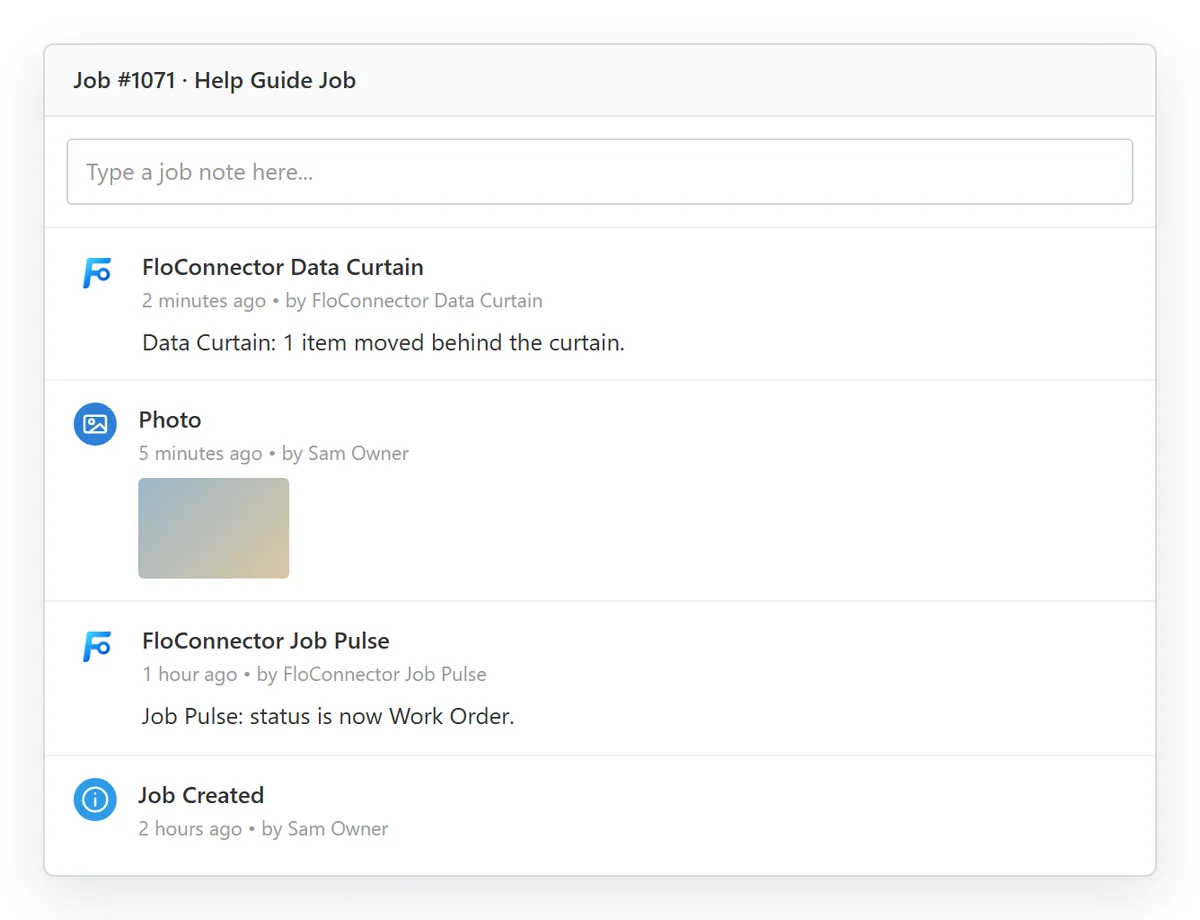
Diary lines from two add-ons, between a photo and the job's creation.
The pictures of ServiceM8 on this page are illustrations built from ServiceM8's layout, with sample data. Yours will show your own jobs and add-ons.
Watch it run
Ask your AI to watch the add-on while you use it:
Watch the Job Pulse logs while I try it.It listens for up to 45 seconds at a time and tells you what the add-on did, including any errors. Click the button, or make the change an automatic add-on watches for, while it is listening. It also catches anything from a few seconds before it started, and you can ask it to keep listening.
Change it
Ask for the change in the chat, or comment on the preview. Your AI saves a new draft, which you can preview, and the version in ServiceM8 keeps running unchanged until you deploy the new one.
Secrets for other services
If an add-on needs a key or token for another service, such as Slack or an SMS gateway, it should never be pasted into the chat or written into the add-on.
- Your AI deploys the add-on first, then asks FloConnector for a one-time link for the key,
such as
SLACK_TOKEN. - You open the link and paste the value on a FloConnector page. It goes straight to ServiceM8 and never passes through the chat.
- The add-on can use it within a minute or so.
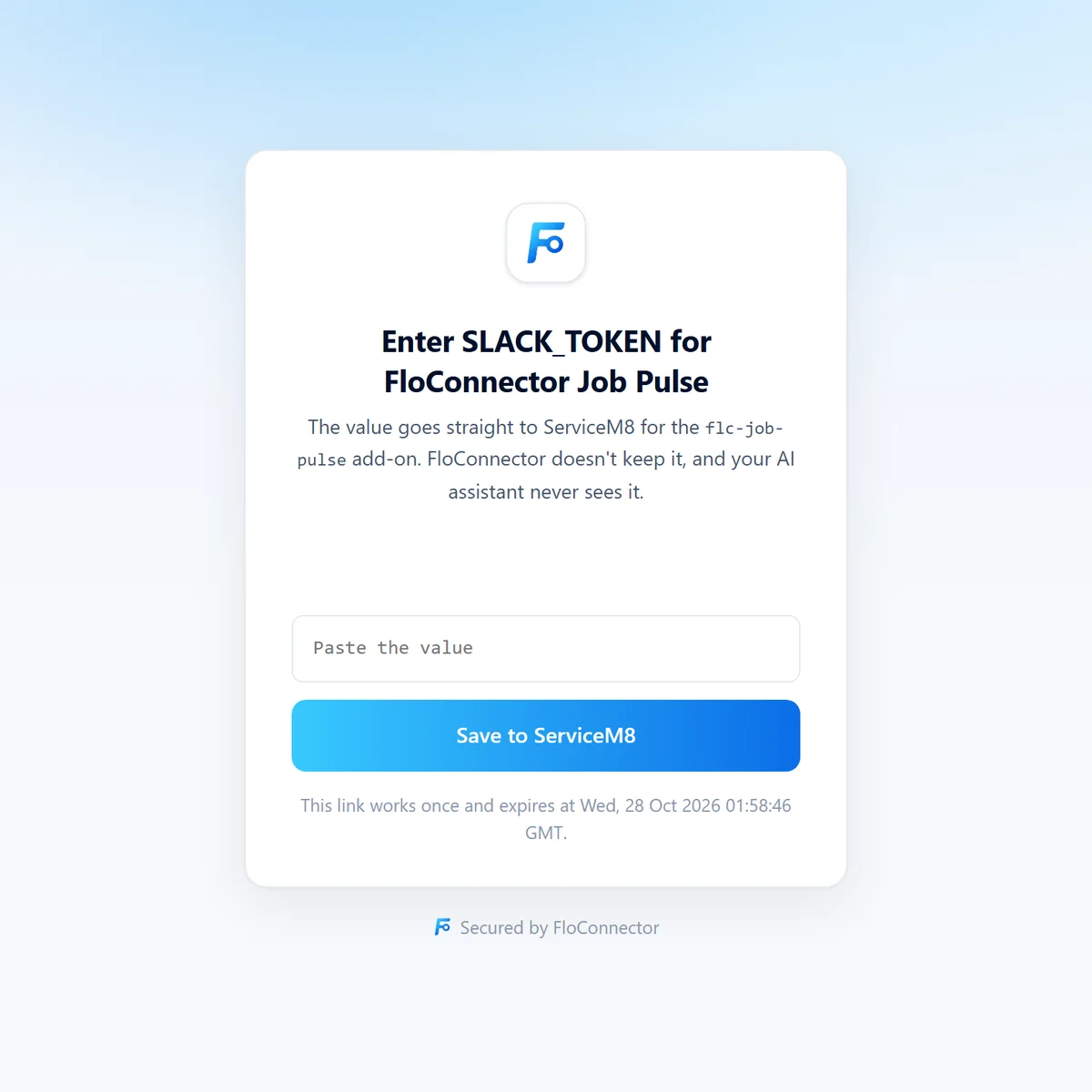
A link works once and expires after 30 minutes. Your AI can list an add-on's secrets by name (never their values) and delete one.
Switch it off
If an add-on misbehaves, ask your AI to switch it off:
Switch off the Job Pulse add-on.It takes about 30 seconds. The add-on's buttons, menu entries and automatic runs stop, and its draft is kept, so turning it back on is one deploy.
Remove it completely
Your AI never deletes add-ons. To remove one entirely, do it yourself in ServiceM8: open Account, Developer, Store Items, find the add-on and remove it there. Switch it off first if it is running.
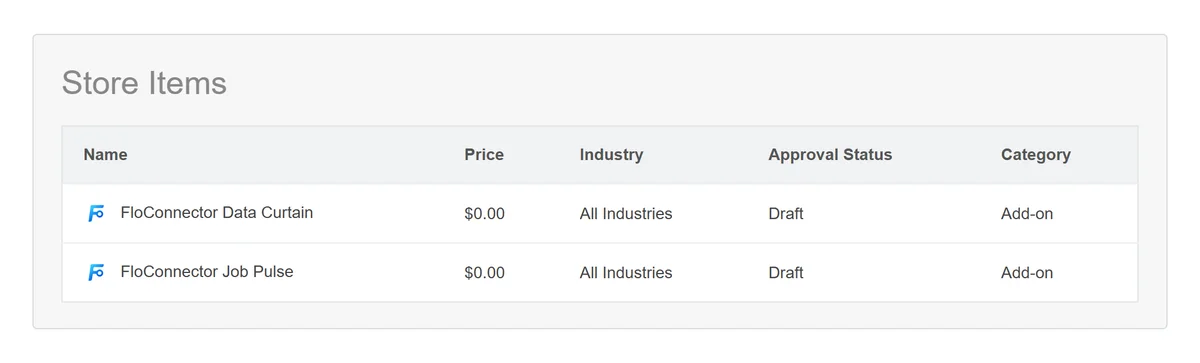
Your add-ons show Draft under Approval Status. That is about ServiceM8's public Add-on Store, not about whether the add-on is live: add-ons built here are private to your account and never need Store approval.