
Preview and comment
Before anything goes live, your AI can open the add-on in a preview right inside the chat. It is the real add-on, running on a sample job, so you can click its buttons and see what your team will see. Nothing reaches your ServiceM8 account while you try it.
Ask for it in plain words:
Open a preview of the Job Pulse add-on.Your AI usually offers a preview after every change anyway.
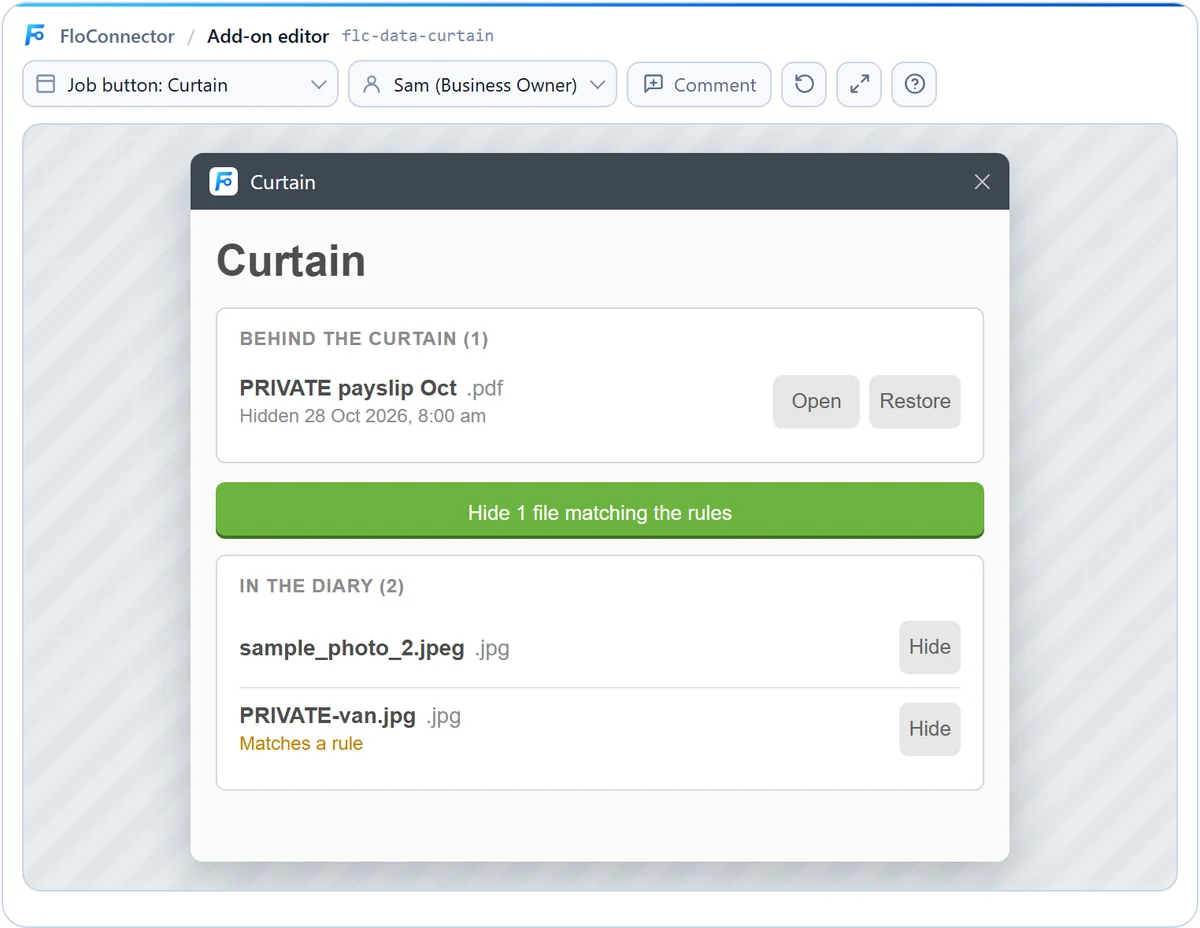
The preview appears in AI apps that show interactive results, including Claude (on the web and in the desktop app) and ChatGPT. Apps that only show text, such as Claude Code, get a short written summary instead, and you can still deploy and test in a test account.
What you can do in the preview
The bar along the top of the preview has everything you need:
| Control | What it does |
|---|---|
| Button or page | Pick which of the add-on's job buttons or Add-ons pages to show. A job button opens as a popup over a sample job; an Add-ons page opens full width. |
| Viewing as | See it as a business owner or as a staff member. Add-ons that check someone's role behave exactly as they will for that person. |
| Comment | Turn on comment mode to point at what you want changed. |
| Reset | Put the sample data back as it started. |
| Fullscreen | Give a menu page room to breathe. |
| ? | A short reminder of how the preview works. |
Click around as you would in ServiceM8. Buttons inside the add-on work: if it hides a file, saves a setting or adds a billing line, you see the result straight away, on the sample data.
Viewing as a staff member
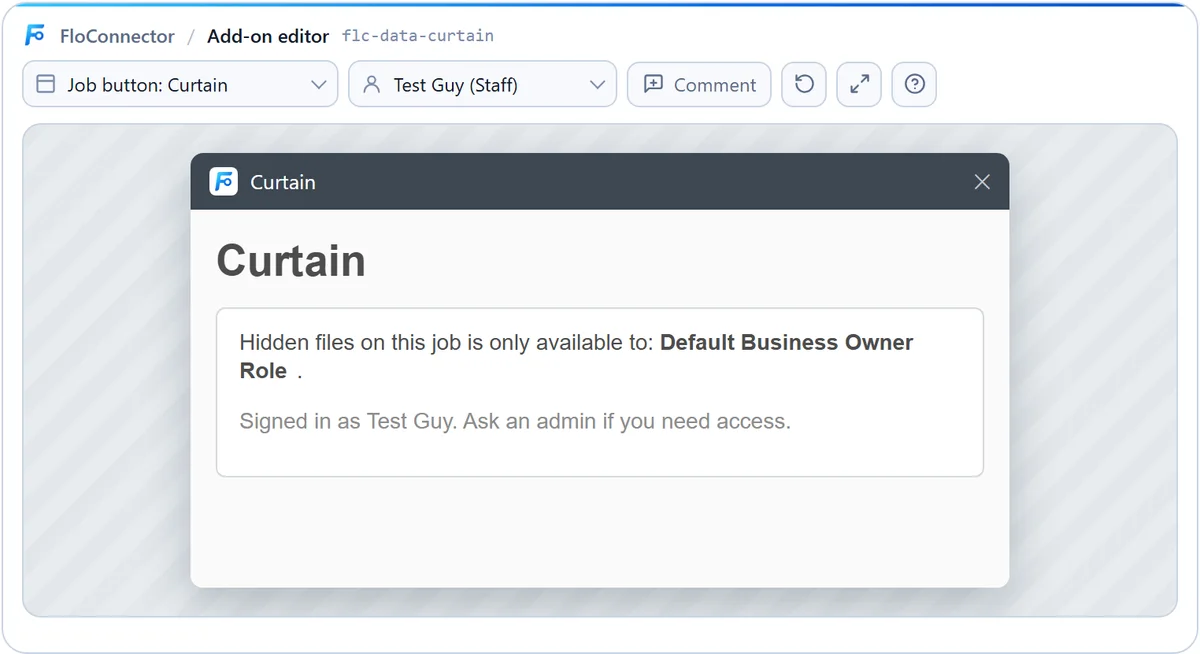
Switch Viewing as to the staff member to check what someone without owner access sees. Here, an add-on that only shows hidden files to business owners tells the staff member they don't have access:
Add-ons pages
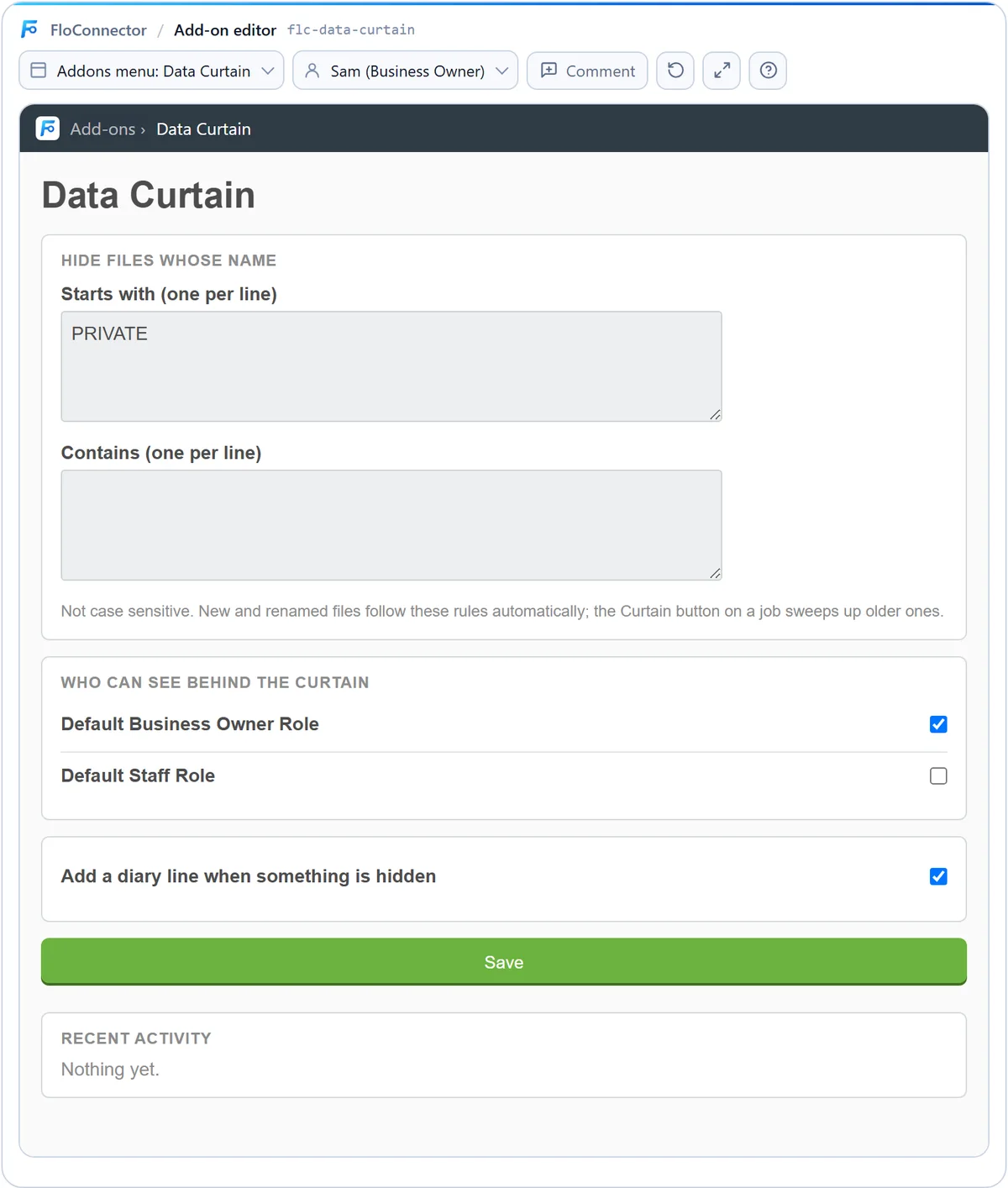
An Add-ons page opens at full width, the way it does in ServiceM8. Use Fullscreen if it needs more room:
Point at what to change
Comment mode is the quickest way to get changes made, because your AI knows exactly which part of the add-on you mean.
-
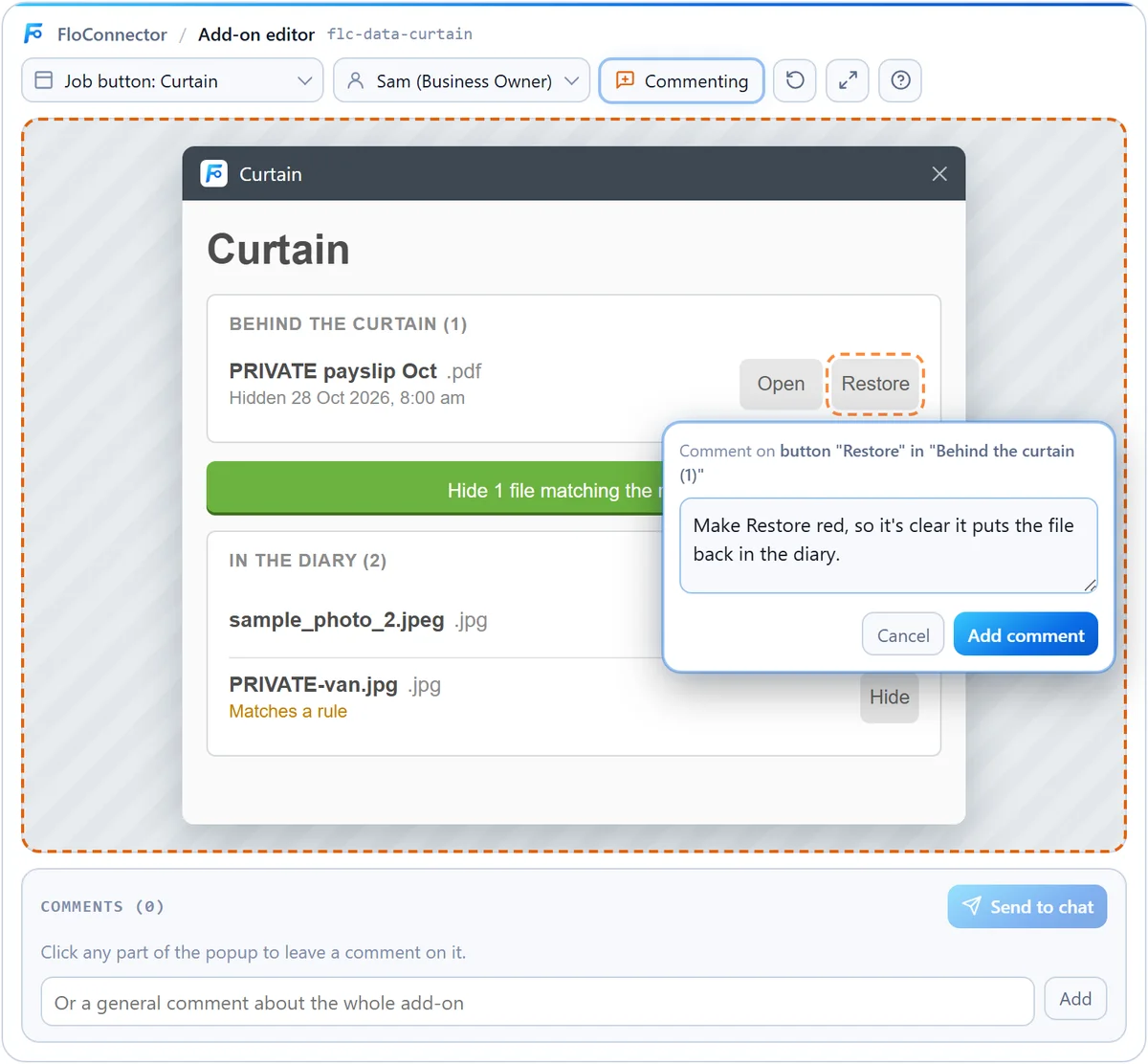
Click Comment. The add-on gets an orange outline, and whatever you hover over is highlighted.
-
Click the part you want changed, write what you want, and click Add comment.
-
Repeat for anything else. Each comment gets a numbered pin, and they collect in a list under the add-on. You can also add a comment about the add-on as a whole.
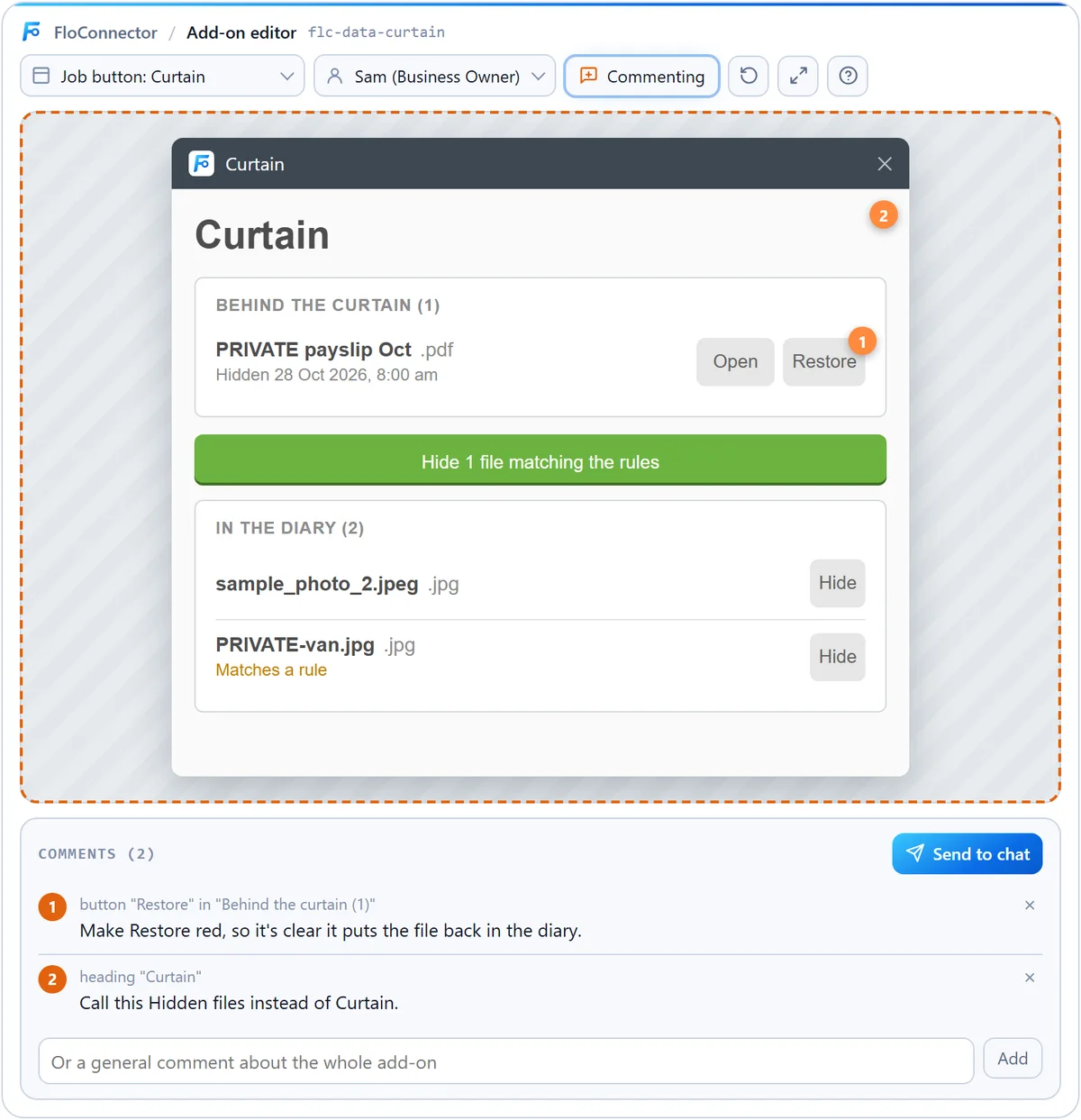
-
Click Send to chat. Your comments go to your AI as one message, and it changes the draft and opens the preview again for you to check.
In Claude, the message lands in the message box for you to send. In ChatGPT it is sent straight away.
Each comment tells your AI which popup you were in, the exact element you clicked and where its text sits in the code, and that only that element should change. So "make this red" on a button changes that button, not something nearby.
What the preview can't show
The preview is the real add-on on sample data, which makes a few things different:
- It isn't your data. The sample job, client, staff and files are made up. The add-on sees the same kinds of records it will see in your account, but not your records.
- Automatic add-ons have nothing to click. If an add-on only runs when something changes, the preview says so. Try it in a test account instead, and ask your AI to watch it run. See Deploy, watch and switch off.
- Other services aren't called. If the add-on talks to another service, such as Slack, those calls are skipped in the preview.
- Changes stay in the preview. Anything the add-on changes, it changes in the sample data, until you reset.